· Marc Morel · Engineering · 7 min read
Three turtles might be enough: hardware-bound SSH keys on macOS
Security never ends in an unconditional root of trust; it ends where the next layer stops paying for itself. For SSH keys on a Mac, three layers are enough, and one of them is already in your laptop.
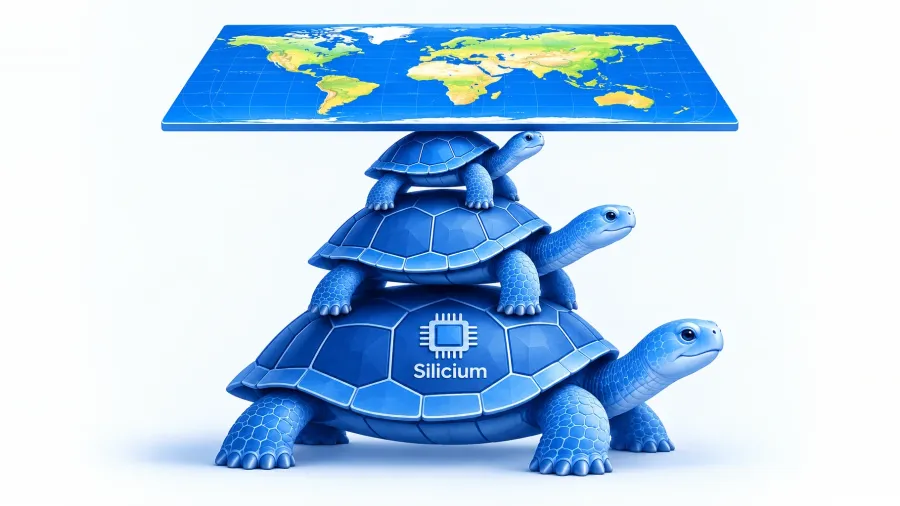
Turtles all the way down
There is an old story about a lecture on astronomy. As the speaker finishes explaining that the Earth orbits the Sun, an elderly woman in the audience politely objects: the world, she says, is a flat plate resting on the back of a giant turtle. Asked what the turtle stands on, she doesn’t hesitate. “It’s turtles all the way down.”
Security engineers know that answer well. A secret is protected by a password, the password by a vault, the vault by a session, the session by a device, and the device by whoever provisioned it. Every safeguard rests on another, and asking “what protects that ?” never arrives at a final, unconditional answer.
So the useful question is not where the last turtle is. There isn’t one. It is how many turtles we need before the next one stops being worth it. For SSH keys on a Mac, the answer is three.
The problem with the first turtle most of us use
Most developers still authenticate to GitHub with a private key stored in a file: ~/.ssh/id_ed25519, often without a passphrase, sometimes copied between machines, occasionally committed to a dotfiles repository by accident.
That file is readable by every process running under your user account. A malicious dependency in a build script, a compromised editor extension or a trojanised command-line tool needs no exploit to steal it: it just reads a file and sends it somewhere. Once copied, the key works from any machine in the world, silently, until someone notices and revokes it. A passphrase helps only while the key is encrypted at rest. An agent that holds the decrypted key all day gives the same material to anything that can talk to its socket.
The weakness is not the cryptography. It is that the secret is portable. Anything that can read it can become you.
Three turtles
A sound design for a developer’s SSH identity needs three layers, each answering a different question.
Turtle one: the key cannot leave the device. The private key is generated inside dedicated hardware and never exists in main memory, on disk or in a backup. Malware can ask the hardware to sign something, but it cannot take the key away and use it elsewhere. This turns a theft problem into a misuse on this machine problem, which is dramatically smaller.
Turtle two: every use requires a human. Each signature requires an explicit act from the person at the keyboard: a fingerprint, not a cached session. Malware that asks the hardware to sign triggers a prompt the user did not expect. Silent use becomes visible use.
Turtle three: the relying party can revoke. GitHub holds only the public key. If the laptop is lost, stolen or retired, removing that public key from the account ends the identity immediately. The key’s lifetime is bound to the device’s, and the service keeps the final say.
A fourth turtle is always available: a hardened boot chain, an attested device, a hardware token in a safe. Each adds cost and friction, and each defends against an attacker who has already defeated the first three. For most engineering teams, three well-chosen layers close the realistic attack paths, and the fourth is where effort stops paying off.
The Secure Enclave is turtle one, and Touch ID is turtle two
Every Apple Silicon Mac, and Intel Macs with a T2 chip, contains a Secure Enclave: an isolated coprocessor with its own memory and firmware, designed so that keys generated inside it cannot be extracted, even by the operating system. Touch ID is wired to it directly. The enclave can require a verified fingerprint before it performs an operation with a given key.
Until recently, using the enclave for SSH meant third-party agents such as Secretive, which remains a solid choice on older macOS versions. Since macOS Tahoe, the system ships the pieces natively:
sc_authcreates identities backed by the Secure Enclave through CryptoTokenKit./usr/lib/ssh-keychain.dylibimplements OpenSSH’s security key provider interface, the same interface OpenSSH uses for FIDO2 tokens such as a YubiKey. To OpenSSH, the Mac simply looks like a built-in hardware security key.
The resulting key type is sk-ecdsa-sha2-nistp256@openssh.com, which GitHub accepts for both authentication and commit signing.
Setting it up for GitHub
1. Create the identity in the Secure Enclave. The p-256-ne key type means the key is generated inside the enclave and is not exportable. -t bio requires Touch ID for every use.
sc_auth create-ctk-identity -l github -k p-256-ne -t biosc_auth list-ctk-identities -t ssh # confirm the identity existsAvoid the exportable p-256 variant. It encrypts the key with the enclave instead of generating it in the enclave, which gives up turtle one.
2. Retrieve the key handle for OpenSSH.
cd ~/.sshssh-keygen -w /usr/lib/ssh-keychain.dylib -K -N ""mv id_ecdsa_sk_rk id_github_enclavemv id_ecdsa_sk_rk.pub id_github_enclave.pubThe “private” file this writes is not the private key. It is a reference to the key held by the enclave, and it is useless on any other machine. Keep it anyway; OpenSSH needs it to address the key.
3. Register the public key with GitHub. Add id_github_enclave.pub under Settings → SSH and GPG keys as an authentication key, or with the GitHub CLI:
gh ssh-key add ~/.ssh/id_github_enclave.pub --title "MacBook enclave $(date +%Y-%m)"4. Point OpenSSH at the enclave. In ~/.ssh/config:
Host github.com User git IdentityFile ~/.ssh/id_github_enclave IdentitiesOnly yes SecurityKeyProvider /usr/lib/ssh-keychain.dylibIdentitiesOnly stops SSH from offering any other key it finds. SecurityKeyProvider tells it to ask the enclave to sign.
5. Test.
ssh -T git@github.comTouch ID should prompt, and GitHub should greet you by username. From then on, every git fetch, pull and push over SSH asks for your fingerprint.
6. Optional: sign commits with the same hardware. Export the provider so that every OpenSSH tool finds it, including the ssh-keygen that Git calls to sign. Then configure Git:
echo 'export SSH_SK_PROVIDER=/usr/lib/ssh-keychain.dylib' >> ~/.zprofile
git config --global gpg.format sshgit config --global user.signingkey ~/.ssh/id_github_enclave.pubgit config --global commit.gpgsign true
Add the same public key in GitHub a second time, as a signing key. Your commits then show as verified, and each signature carries the same guarantee as your logins: it was made on this Mac, by someone with this finger.
Operating it without regret
Hardware binding changes a few habits:
- Plan for loss before it happens. A key that cannot leave the device dies with it. Register a second hardware-bound key: another Mac’s enclave, or a FIDO2 token kept somewhere safe. Revoke the old key the day a machine is lost or retired.
- Expect a prompt per signature. Scripts that open many SSH connections will prompt many times. Batch the operations, or reuse one authenticated connection with
ControlMaster autoand a shortControlPersistin thegithub.comblock. Multiplexing relaxes turtle two slightly: local processes can ride the open connection until it expires, so keep the window short. - Verify the enclave is really in the loop. In a virtual machine without an enclave, the tooling can still create an identity. Create keys on the physical Mac, and check that Touch ID actually prompts before trusting the setup.
- Keep the old keys honest. Once the enclave key works, remove file-based keys from GitHub and from
~/.ssh. A strong key next to a weak one is only as strong as the weak one.
What changes
The old woman in the story was not wrong that every foundation rests on something. The mistake would be to conclude that nothing can be trusted until the last turtle is found. Security engineering is the practice of choosing where to stop, deliberately, and knowing why.
For SSH identities, three layers do the work:
- a key that cannot leave the hardware;
- a fingerprint for every use;
- a service that can revoke in one click.
Each closes a path the others leave open, and all three already exist on the laptop in front of you.